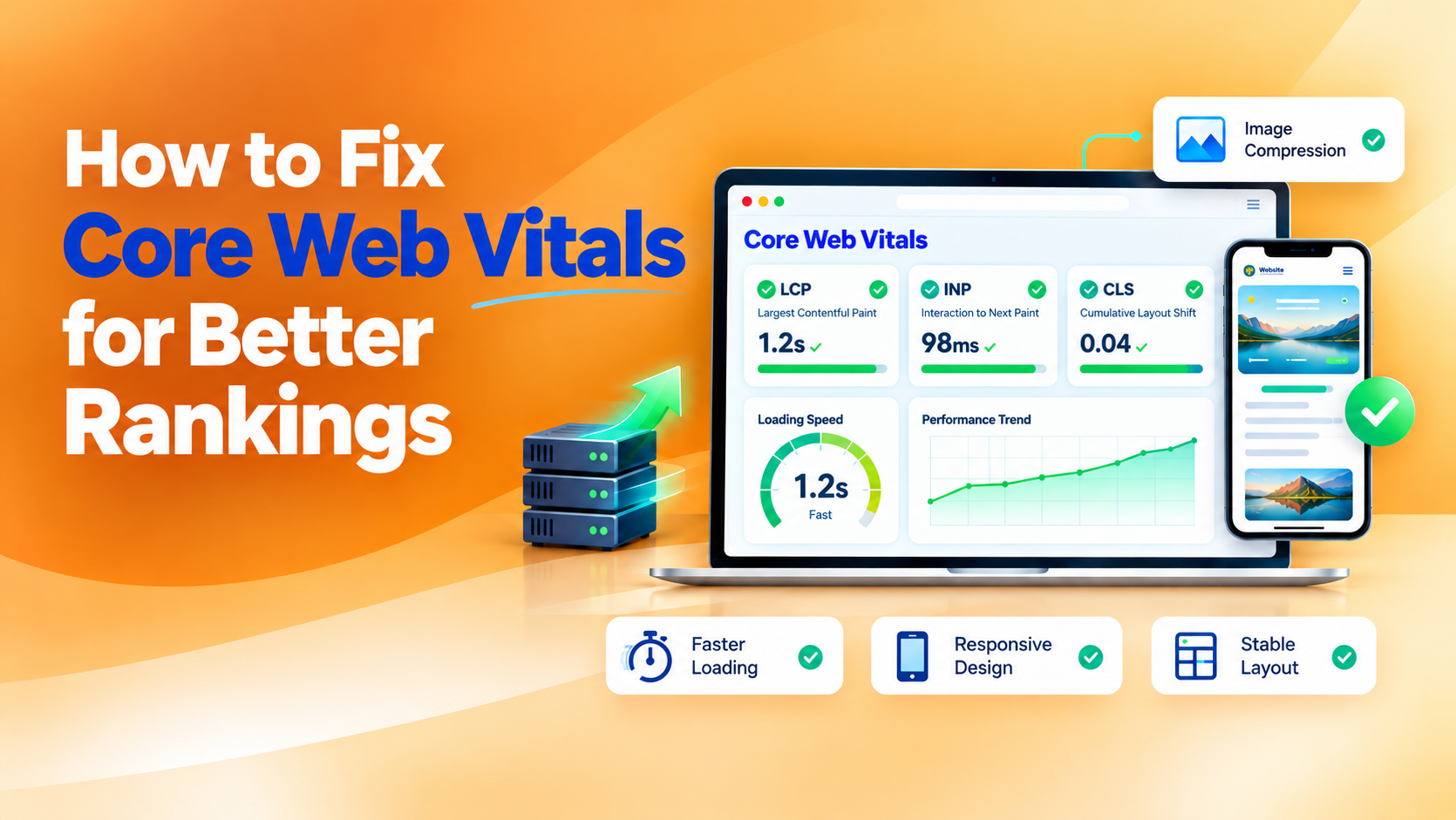
To fix Core Web Vitals for better rankings, identify failing metrics in Google Search Console and PageSpeed Insights. Compress oversized images, improve server response time, reduce unnecessary JavaScript, and prevent unexpected layout shifts. Aim for a Largest Contentful Paint (LCP) of 2.5 seconds or less, an Interaction to Next Paint (INP) of 200 milliseconds or less, and a Cumulative Layout Shift (CLS) score of 0.1 or less at the 75th percentile of real-user page loads, assessed separately for mobile and desktop. Retest your pages after each change and monitor field data to verify improvements. Good Core Web Vitals support a better page experience, but they do not guarantee higher Google rankings.
Core Web Vitals play an important role in website performance, user experience, and SEO. When your website loads slowly, responds late to clicks, or displays unexpected layout shifts, visitors may leave before engaging with your content. These problems can weaken the user experience and contribute to poor Core Web Vitals results, which are used in Google’s page experience and ranking systems.
The good news is that you can fix Core Web Vitals for better rankings by identifying performance problems and applying targeted technical improvements. This guide explains how to improve LCP, INP, and CLS, diagnose failing pages, and monitor your progress using practical testing methods.
Table of Contents
- What Are Core Web Vitals?
- What Are the Core Web Vitals Thresholds?
- Why Are Your Core Web Vitals Failing?
- How to Fix Core Web Vitals for Better Rankings
- Fix Largest Contentful Paint (LCP)
- Improve Interaction to Next Paint (INP)
- Reduce Cumulative Layout Shift (CLS)
- Improve Server Response Time
- Optimize Mobile Performance
- How to Measure Core Web Vitals
- A Practical Core Web Vitals Diagnostic Framework
- Common Core Web Vitals Mistakes to Avoid
- How Long Does It Take to Fix Core Web Vitals?
- FAQs About Core Web Vitals
What Are Core Web Vitals?
Core Web Vitals are three Google metrics that measure how people experience a website. They focus on loading speed, responsiveness, and visual stability.
In simple terms, these metrics answer three questions. Does the main content load quickly? Does the page respond when someone interacts with it? Does the layout remain stable while the page loads?
Core Web Vitals are part of Google’s page experience and ranking systems. However, good scores alone cannot guarantee top search positions. Content quality, search intent, technical accessibility, and other ranking signals also matter.
For businesses, these metrics have a practical purpose. A slow page can frustrate visitors before they explore your services, read your content, or contact your team. Similarly, a page that shifts unexpectedly can make navigation difficult.
Therefore, improving Core Web Vitals can help create a better experience for search visitors and potential customers. It also gives website owners a clear starting point for identifying technical performance problems.
What Are the Core Web Vitals Thresholds?
Google classifies each metric as good, needing improvement, or poor. The following thresholds are used to evaluate real-user experiences at the 75th percentile of page visits. Mobile and desktop results are assessed separately.
| Metric | What It Measures | Good | Needs Improvement | Poor |
| Largest Contentful Paint (LCP) | Loading performance | ≤ 2.5 seconds | > 2.5 to 4 seconds | > 4 seconds |
| Interaction to Next Paint (INP) | Responsiveness | ≤ 200 ms | > 200 to 500 ms | > 500 ms |
| Cumulative Layout Shift (CLS) | Visual stability | ≤ 0.1 | > 0.1 to 0.25 | > 500 ms |
A page needs to meet the good threshold for all three metrics to pass the Core Web Vitals assessment.
For example, a website may load its main image in two seconds but still fail because its navigation menu responds slowly. Likewise, a promotional banner that pushes the content down can cause a poor CLS score even when the page loads quickly.
As a result, you should evaluate each metric separately rather than relying on a single overall performance score.
Why Are Your Core Web Vitals Failing?
Core Web Vitals problems often come from a few common technical issues. However, the correct solution depends on the failing metric and its underlying cause.
1. Large Images and Videos
Large hero images, background videos, and uncompressed graphics can delay the main content. This often leads to poor LCP, particularly on mobile devices.
For example, a service page might use a 2 MB banner image when a smaller, optimized file would provide similar visual quality. Reducing the file size can help the browser display the main content sooner.
2. Excessive JavaScript
JavaScript supports menus, sliders, forms, pop-ups, and other interactive features. However, too much JavaScript can keep the browser busy and delay user actions.
Consequently, visitors may experience slow buttons, unresponsive menus, or delayed form interactions. Unused code and heavy third-party scripts are common areas to investigate.
3. Missing Image Dimensions
When a browser does not know an image’s dimensions, it may need to move surrounding content after the image loads. This can increase CLS.
Similarly, advertisements, embedded videos, cookie notices, and promotional banners can cause layout shifts when the page does not reserve enough space for them.
4. Slow Server Response
A slow server delays the start of page rendering. Even well-optimized images and scripts cannot fully compensate for a server that takes too long to return the initial HTML.
High server load, inefficient database queries, poor caching, and unnecessary redirects may contribute to the problem.
5. Poor Mobile Performance
Mobile devices often have less processing power and slower network connections than desktop computers. Therefore, a page that performs well on a laptop may struggle on a phone.
Large images, heavy animations, oversized scripts, and render-blocking resources can make this problem worse.
If your website is also struggling to rank, review common reasons a website is not ranking on Google. This can help you distinguish performance problems from indexing, content, and other technical SEO issues.
How to Fix Core Web Vitals for Better Rankings
The most effective way to fix Core Web Vitals for better rankings is to address the issues that affect visitors most. Start with the failing metric, inspect the relevant page, and test your changes before moving to the next problem.
1. Fix Largest Contentful Paint (LCP)
LCP measures how long it takes for the largest visible content element to appear. This element is often a hero image, a large heading, or a prominent image near the top of the page.
A slow LCP can leave visitors waiting for the content they came to see.
How to improve LCP:
- Compress large images and use suitable WebP or AVIF formats.
- Resize images to match the dimensions used on the page.
- Avoid lazy-loading the main above-the-fold image.
- Use fetchpriority=”high” for the LCP image when appropriate.
- Preload critical resources only when testing shows a benefit.
- Reduce render-blocking CSS and JavaScript.
- Improve server response time and enable effective caching.
- Use a content delivery network (CDN) when it improves resource delivery.
For example, imagine a business landing page where the main banner takes four seconds to appear. Compressing the image, serving the correct dimensions, and helping the browser discover it earlier may reduce the delay.
However, avoid preloading every image or script. Too many high-priority resources can compete for bandwidth and slow down important content.
Target: Achieve an LCP of 2.5 seconds or less at the 75th percentile of real-user page loads.
2. Improve Interaction to Next Paint (INP)
INP measures how quickly a page responds to user interactions throughout a visit. These interactions include clicks, taps, and keyboard actions.
A poor INP score can make a website feel unresponsive, even when its content loads quickly. For instance, a visitor might click a navigation menu and wait before it opens.
How to improve INP:
- Remove unused JavaScript and unnecessary code.
- Split large JavaScript bundles into smaller parts.
- Break up long-running JavaScript tasks.
- Delay non-essential third-party scripts until they are needed.
- Keep event handlers short and efficient.
- Avoid expensive calculations during user interactions.
- Reduce unnecessary page updates and complex rendering work.
- Review scripts used by chat widgets, analytics, pop-ups, and advertisements.
Consider a lead-generation page where a form freezes when a visitor selects a service. A large script may be performing several calculations at once. Breaking that work into smaller tasks can help the browser respond sooner.
Additionally, use Chrome DevTools to identify long tasks and inspect what happens when someone clicks or taps an interactive element.
Remember that Total Blocking Time (TBT) can help identify responsiveness problems in lab testing, but it is not a direct measurement of field INP. Real-user data is needed to evaluate INP itself.
Target: Achieve an INP of 200 milliseconds or less at the 75th percentile of real-user page loads.
3. Reduce Cumulative Layout Shift (CLS)
CLS measures unexpected movement of visible page content. A high score can make visitors lose their place or click the wrong element.
For example, someone may try to click a navigation link just as an advertisement appears above it. The link moves, and the visitor clicks something else.
How to reduce CLS:
- Set explicit width and height attributes on images and videos.
- Reserve space for advertisements, embeds, and dynamically loaded content.
- Avoid inserting new content above existing content without a user action.
- Use stable layouts for banners, forms, and promotional messages.
- Load fonts carefully to reduce shifts caused by font changes.
- Prefer CSS animations that do not trigger layout changes.
- Check cookie notices and pop-ups that push page content down.
Imagine a blog page that displays its title before loading a large image. Without reserved space, the image pushes the article down after it appears. Setting the image dimensions allows the browser to allocate the correct space in advance.
Target: Achieve a CLS score of 0.1 or less at the 75th percentile of real-user page loads.
4. Improve Server Response Time
The server affects how quickly a page begins loading. When the initial HTML arrives late, the browser must wait before it can discover and render many important resources.
Start by checking Time to First Byte (TTFB). Although TTFB is not one of the three Core Web Vitals, it can help reveal delays before rendering begins.
Practical fixes include:
- Enable full-page caching where appropriate.
- Optimize database queries and server-side code.
- Reduce unnecessary redirects.
- Review hosting resources and server load.
- Use a CDN for suitable static resources.
- Enable compression for text-based assets.
- Avoid expensive operations during every page request.
For example, an online store may generate every product page dynamically, even when the content rarely changes. Effective caching can reduce repeated server work and help pages begin loading faster.
However, do not change hosting providers based on a single test. Compare results across multiple runs and investigate server logs or backend timings first.
5. Optimize Mobile Performance
Mobile performance deserves separate attention because visitors may use slower connections and less powerful devices.
Start by testing important pages on mobile. Review the home page, service pages, blog posts, product pages, and lead forms instead of assuming one page represents the entire website.
Focus on these improvements:
- Use responsive images and appropriate image sizes.
- Reduce unnecessary animations and background videos.
- Limit third-party scripts and widgets.
- Avoid loading below-the-fold images too early.
- Keep mobile navigation responsive.
- Prevent pop-ups from shifting content unexpectedly.
- Test forms, menus, filters, and other interactive elements.
Furthermore, review mobile and desktop field data separately. Passing on desktop does not mean mobile visitors receive the same experience.
How to Measure Core Web Vitals
Use field data and lab testing together to identify problems and confirm improvements.
Google Search Console
The Core Web Vitals report groups pages by performance status. It helps identify URL groups with poor LCP, INP, or CLS.
Start with groups marked poor, then review representative URLs. Similar pages may share a template or code issue. Fixing that shared issue can improve several pages at once.
Google PageSpeed Insights
PageSpeed Insights provides field data when sufficient real-user data is available, along with lab diagnostics and recommendations.
Use it to investigate individual URLs and identify resources that may be slowing down the page.
Chrome DevTools and Lighthouse
Chrome DevTools helps investigate performance issues during development. Lighthouse provides controlled lab tests and useful diagnostics for loading performance and layout stability.
However, lab results and field results can differ. A page may pass a simulated test but perform poorly for visitors using slower devices or network connections.
Recommended Testing Process
- Test the affected URL on mobile and desktop.
- Record the LCP, INP, and CLS results.
- Identify the largest contributing issue.
- Make one focused set of changes.
- Run the test again under comparable conditions.
- Monitor field data as new visits are collected.
- Recheck the relevant Search Console report.
For a broader approach to website performance and visibility, explore Ecsion’s website and digital growth solutions.
A Practical Core Web Vitals Diagnostic Framework
Use this framework to decide what to investigate first. The figures below are illustrative examples, not measured results from a real website.
| Example Finding | Likely Cause to Investigate | First Action |
| LCP is 4.2 seconds | Large hero image, delayed resource discovery, or slow server | Identify the LCP element, check its load delay and server response, then optimize the bottleneck |
| INP is 320 ms | Long JavaScript tasks or expensive event handlers | Record a slow interaction in Chrome DevTools and identify the long task or event handler responsible |
| CLS is 0.28 | Missing image dimensions or late-loading banners | Identify the elements shifting during loading, then reserve space or correct the layout behavior |
| TTFB is high | Server processing, caching, or network delay | Check backend timings and caching |
| Mobile fails but desktop passes | Heavy assets or scripts on mobile | Test mobile-specific resources and interactions |
Prioritize Fixes by Impact
Use the following sequence when several problems appear at once.
Step 1: Find the failing metric. Start with the Core Web Vitals report and PageSpeed Insights. Avoid optimizing a resource simply because it appears in a report.
Step 2: Locate the cause. Check the LCP element, JavaScript tasks, layout shifts, or server timings, depending on the failing metric.
Step 3: Estimate the reach. Prioritize problems affecting important landing pages, service pages, lead forms, or shared page templates.
Step 4: Apply the smallest effective fix. For example, compressing the main image may be a better first step than redesigning the entire page.
Step 5: Test the result. Compare the same URL and device conditions before and after the change.
Step 6: Monitor field data. Real-user performance data changes over time, so allow for the reporting window and check whether the improvement lasts.
This approach helps teams avoid spending time on cosmetic score changes while larger user experience problems remain.
Common Core Web Vitals Mistakes to Avoid
Improving website performance is not just about achieving a high Lighthouse score. Changes must improve the experience visitors actually receive.
Avoid these common mistakes:
- Chasing a perfect score: A score of 100 does not guarantee higher rankings or more conversions.
- Relying only on lab tests: Lab tests help with diagnosis, while field data shows real-user performance.
- Lazy-loading the main image: Delaying the LCP image can make the page appear slower.
- Removing useful features without testing: Performance changes should not break navigation, forms, or important content.
- Adding too many preloads: Unnecessary preloads can compete with critical resources.
- Ignoring mobile users: Desktop improvements may not solve mobile performance issues.
- Expecting instant report updates: Field data and Search Console reports need time to reflect changes.
- Fixing symptoms instead of causes: Compressing images will not resolve an INP issue caused by heavy JavaScript.
Instead, focus on measurable improvements that make pages faster, easier to use, and more stable.
How Long Does It Take to Fix Core Web Vitals?
The time required depends on the cause, website size, and complexity of the code.
A simple image optimization or missing-dimension fix may take little time. However, improving a slow server, refactoring JavaScript, or correcting layout issues across a large site can require more work.
It is also important to separate implementation time from reporting time. A code change may take effect immediately, but field data and Search Console reports need time to reflect the experience of new visitors.
Therefore, record the initial results, document each change, and monitor the same page groups after deployment. This makes it easier to identify which fixes produced meaningful improvements.
FAQs About Core Web Vitals
1. Do Core Web Vitals affect Google rankings?
Yes. Core Web Vitals are used in Google’s ranking systems as part of page experience evaluation. However, good scores do not guarantee higher rankings because content relevance, quality, and other ranking signals also matter.
2. What is a good Core Web Vitals score?
A good assessment requires LCP of 2.5 seconds or less, INP of 200 milliseconds or less, and CLS of 0.1 or less. These targets are assessed at the 75th percentile of page visits, separately for mobile and desktop.
3. How do I fix Core Web Vitals failing in Google Search Console?
Open the Core Web Vitals report, select a failing metric, and inspect the affected URL group. Test representative pages in PageSpeed Insights, identify the cause, deploy a fix, and monitor the report as field data updates.
4. Can plugins affect Core Web Vitals?
Yes. Some plugins add JavaScript, stylesheets, images, pop-ups, or external requests. Review their performance impact before removing them, and test the website after each change.
5. How often should I check Core Web Vitals?
Check them after major website changes, theme updates, plugin changes, or performance work. Regular reviews can also help identify regressions before they affect more visitors.
6. Will passing Core Web Vitals improve rankings immediately?
No. Passing the assessment does not guarantee a ranking increase. Google uses multiple ranking signals, and field data and reporting tools may take time to reflect improvements.
Improve Core Web Vitals for Better Rankings
Fixing Core Web Vitals starts with identifying the failing metric, diagnosing its cause, and testing targeted improvements. Optimize LCP by delivering important content faster, improve INP by reducing unnecessary JavaScript work, and reduce CLS by preventing unexpected layout shifts.
Use Google Search Console, PageSpeed Insights, and Chrome DevTools to investigate problems and verify changes. Monitor real-user field data separately for mobile and desktop to confirm whether improvements persist.
For broader search visibility, combine technical SEO improvements with useful content, sound website structure, and a positive mobile experience. You can also explore Ecsion’s guide on choosing an SEO agency for better AEO visibility to understand how technical SEO and content optimization work together.