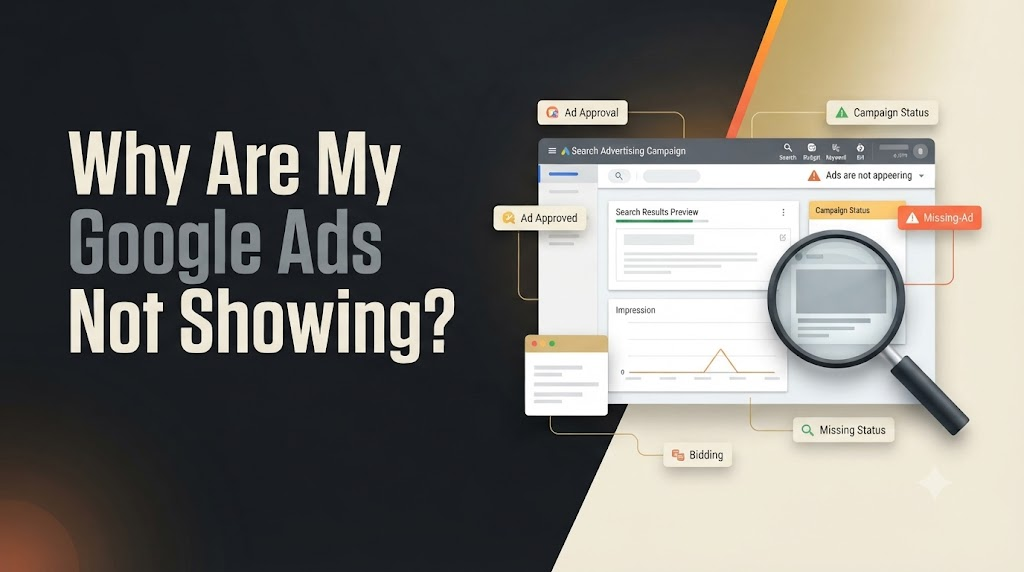
If your Google Ads are not showing, check your campaign status, ad approval, billing details, budget, bidding strategy, keywords, and targeting settings to identify the cause. Google Ads may receive no impressions when campaigns are paused, ads are disapproved or under review, keywords have low search volume, or bids and targeting limit your eligibility to enter ad auctions. The fastest way to diagnose the problem is to check your account status and use Google’s Ad Preview and Diagnosis tool instead of repeatedly searching for your own ads.
Why Are My Google Ads Not Showing?
When Google Ads are not showing on Google Search or other placements, it does not always mean that your campaign is broken. Your ads may be eligible but appear less frequently because of competition, targeting restrictions, budget limitations, or auction conditions. In some cases, an account-level issue, policy restriction, or incorrect campaign setting may prevent ads from serving entirely.
Before making changes, open your Google Ads account and check the campaign’s impressions, clicks, status, and notifications. These details help you distinguish between ads that are not serving at all and ads that are running but receiving limited visibility.
1. Check Your Google Ads Campaign Status
One of the first things to check when Google Ads are not showing is whether the campaign, ad group, and individual ads are enabled. A campaign can appear in your account without being eligible to serve.
Follow these steps:
- Sign in to your Google Ads account.
- Open the Campaigns section.
- Review the campaign’s status.
- Open the relevant ad group and check whether it is enabled.
- Go to Ads and assets and review the status of your ads.
- Check whether anything is paused, removed, pending, or ended.
If a campaign or ad group is paused, enable it if you intend to run it. If the campaign has not reached its scheduled start date or has passed its end date, correct the schedule where appropriate.
Tip: Look at the Status column rather than assuming a campaign is active just because it appears in the dashboard.
2. Check Whether Your Google Ads Are Approved
Ad approval is another important reason Google Ads may not be showing. Google reviews ads and their associated assets to determine whether they comply with advertising policies.
To check your ad approval status:
- Open Campaigns in Google Ads.
- Select Ads or Assets.
- Review the Status column.
- Open the policy details for any disapproved or limited ad.
- Read the specific reason and correct the issue.
- Submit the corrected ad for review or request an appeal if you believe the decision was incorrect.
If your Google Ads show an Under review status, allow time for the review to finish. Many ads are reviewed within one working day, but some reviews can take longer.
If an ad is disapproved, identify the actual policy issue before editing it. Repeatedly making small changes without addressing the underlying problem may not resolve the restriction.
3. Verify Your Google Ads Billing and Account Status
Billing problems can prevent Google Ads from running even when your campaigns and ads appear correctly configured. Account suspension or certain account verification issues can also restrict ad delivery.
Follow these steps to check billing:
- Sign in to Google Ads.
- Open the Billing section.
- Review your payment methods and outstanding balances.
- Check for declined payments or requests to verify your payment information.
- Review account notifications for suspension, verification, or other restrictions.
- Resolve the specific issue using Google’s instructions.
If your payment was declined, confirm that your payment method is valid and that your bank has not blocked the transaction. If your account is suspended, follow the stated policy or verification requirements and use the appropriate appeal process when applicable.
Resolving billing issues can restore eligibility, but ads may not start immediately if other campaign restrictions remain.
4. Check Your Google Ads Budget and Bidding Strategy
A limited budget or unsuitable bidding setup can cause Google Ads to receive fewer impressions than expected. Even an enabled campaign may struggle to enter auctions if its budget is restrictive or its bidding strategy is not configured appropriately.
To investigate budget and bidding issues:
- Open your campaign settings.
- Check the average daily budget and any budget-related status messages.
- Review the bidding strategy and its status.
- Look for warnings such as Limited, Learning, Inactive, or Misconfigured.
- Review recent changes to budgets, bids, and conversion goals.
- Compare your bidding strategy with your campaign objective.
If your campaign is limited by budget, review whether the available budget is sufficient for the traffic and results you want. Increase it only when the expected business value supports the additional spending.
If you use Target CPA or Target ROAS, check whether the targets are too restrictive for your current conversion data. A very aggressive target may limit delivery. Make changes based on performance evidence rather than increasing bids automatically.
5. Review Your Google Ads Keywords and Search Volume
If Google Ads are not showing for your target searches, your keywords may have low search volume, restrictive match types, or limited relevance to the queries users enter.
Follow these steps:
- Open the Keywords section of your Search campaign.
- Review each keyword’s status.
- Check for Low search volume, Not eligible, or other status messages.
- Review keyword match types.
- Check whether negative keywords are blocking relevant searches.
- Use Google Keyword Planner to explore relevant keywords and estimated search demand.
Choose keywords that closely match your products, services, and customers’ search intent. If a keyword has very low search volume, consider relevant alternatives that people are more likely to search for.
Avoid adding unrelated high-volume keywords just to increase impressions. Relevant keywords are more likely to attract useful traffic and support your campaign goals.
6. Check Your Google Ads Targeting Settings
Incorrect or overly restrictive targeting can prevent your Google Ads from reaching enough eligible users. Your campaign may be active, but the combination of location, language, audience, device, and schedule settings may significantly limit its reach.
Review these settings:
- Location targeting: Confirm that the campaign targets the intended cities, regions, or countries.
- Language targeting: Check that the selected languages match your intended audience.
- Ad schedule: Verify that your ads are scheduled to run during the periods you expect.
- Device targeting: Review any device-specific bid adjustments or restrictions.
- Audience settings: Check whether audience targeting is unnecessarily narrow.
- Negative keywords: Confirm that relevant searches are not excluded.
For local businesses, location settings deserve particular attention. If your Google Ads target the wrong region or use unnecessarily narrow geographic restrictions, potential customers may not see your ads.
Broaden targeting only when the additional audience is relevant to your business. Wider targeting is not automatically better if it attracts users who are unlikely to convert.
7. Use the Google Ads Ad Preview and Diagnosis Tool
The Ad Preview and Diagnosis tool is one of the most useful ways to troubleshoot Google Ads not showing. It helps you investigate why a Search ad may not appear for a specific keyword without repeatedly searching for your own ad and generating unnecessary impressions.
To use the tool:
- Sign in to Google Ads.
- Open the Tools section.
- Find Ad Preview and Diagnosis.
- Enter a relevant search term.
- Select the intended location, language, and device.
- Review the result and any explanation provided.
If the tool identifies an issue, follow its recommendations and check the corresponding campaign settings.
If the tool does not show your ad, remember that it evaluates a particular search scenario. The result does not necessarily prove that your ad is never appearing in other auctions. Check your actual campaign impressions and clicks alongside the diagnostic result.
8. Improve Ad Rank and Ad Relevance
If your Google Ads are eligible but rarely appear, low Ad Rank may be contributing to the problem. Ad Rank helps determine whether an ad can show and where it may appear relative to other ads.
Ad Rank can be influenced by factors such as your bid, ad quality, auction competition, search context, and the expected impact of ad assets.
To improve ad relevance and eligibility:
- Align your keywords with your ad headlines and descriptions.
- Make your offer clear and relevant to the search query.
- Create useful, specific landing pages for your advertised services.
- Add relevant assets, such as sitelinks, where appropriate.
- Review your Quality Score components as diagnostic indicators.
- Evaluate your bids against your goals and available budget.
Quality Score is a diagnostic metric, not a direct formula for calculating every auction’s Ad Rank. Focus on improving relevance and the user experience instead of trying to achieve a particular Quality Score number alone.
9. Check Your Landing Page and Final URL
A landing page problem can affect Google Ads eligibility and the experience users receive after clicking an ad. If your final URL is broken, redirects incorrectly, or leads to content that does not match the ad, it may create policy or technical problems.
To check your landing page:
- Open the ad’s final URL.
- Confirm that the page loads correctly on desktop and mobile.
- Check for server errors, broken links, or redirect loops.
- Ensure that the page content matches the ad’s promise.
- Confirm that the page is accessible to Google’s systems.
- Review any destination-related policy warnings in Google Ads.
Fix technical errors and make the page useful, functional, and relevant to the advertised product or service. A landing page improvement may help address destination issues, but it will not fix unrelated billing, bidding, or targeting problems.
10. Check Your Campaign Dates and Reporting Range
Sometimes Google Ads appear not to be running because the selected reporting dates do not include the period when the campaign served. Incorrect start dates, end dates, or reporting filters can also make campaign activity difficult to identify.
To investigate:
- Check the campaign’s start and end dates.
- Confirm that the campaign is scheduled to run on the current day.
- Set the reporting date range to include today and recent days.
- Remove any filters that may hide relevant campaigns or ads.
- Compare impressions and clicks across appropriate date ranges.
Remember that reporting data may not update instantly. If a campaign was recently launched or changed, allow time for review, serving, and reporting to progress before making additional changes.
11. Understand Why Google Ads Have Zero Impressions
Zero impressions are a useful warning sign, but they do not identify the cause by themselves. Google Ads may receive zero impressions because the campaign is inactive, an ad is disapproved, billing is blocked, keywords have low search volume, targeting is too restrictive, or the campaign is not competitive enough to enter relevant auctions.
Use this quick diagnostic checklist:
- Campaign, ad group, and ads are enabled.
- Ads and assets are approved or eligible to serve.
- Billing and account status are valid.
- Campaign dates and ad schedules are correct.
- Keywords have relevant search demand.
- Negative keywords do not block intended searches.
- Budget and bidding settings allow the campaign to compete.
- Location, language, device, and audience settings are appropriate.
- The Ad Preview and Diagnosis tool has been checked.
If these checks do not reveal the issue, review campaign diagnostics and the detailed status messages in your Google Ads account. Avoid changing every setting at once because that can make it harder to identify the actual cause.
12. How Long Does It Take for Google Ads to Start Showing?
The time required for Google Ads to start showing depends on the campaign’s approval status, account health, settings, and bidding strategy. Many ads are reviewed within one working day, although some reviews take longer.
After approval, impressions are not guaranteed. Your campaign must still be eligible for relevant auctions and compete under its budget, bidding, targeting, and other settings.
If Google Ads are not showing after launch, check the campaign and ad status first, then review billing and diagnostics. Avoid repeatedly editing an ad that is already under review unless you have identified a necessary correction.
13. Common Mistakes to Avoid When Google Ads Are Not Showing
When troubleshooting Google Ads not showing, avoid making changes without understanding the cause. These common mistakes can waste time or make diagnosis more difficult:
- Searching for your own ad repeatedly instead of using Ad Preview and Diagnosis.
- Increasing the budget before checking campaign eligibility and billing.
- Raising bids without reviewing keyword relevance and competition.
- Adding broad, irrelevant keywords to force more impressions.
- Changing bidding strategies repeatedly during the learning period.
- Ignoring policy warnings or destination errors.
- Assuming that an enabled campaign is automatically eligible to serve.
- Making several changes simultaneously without monitoring their effects.
A structured troubleshooting process helps you isolate the cause and make informed changes rather than spending more without understanding the problem.
Conclusion
If your Google Ads are not showing, start by checking campaign status, ad approval, billing, budget, bidding strategy, keywords, and targeting. Next, use the Ad Preview and Diagnosis tool to investigate why your Search ad may not appear for a specific query.
The most effective solution depends on the actual status and diagnostic information in your account. Identify the cause first, make the necessary correction, and monitor impressions and clicks to confirm whether ad delivery improves.
Frequently Asked Questions
1. Why are my Google Ads not showing?
Google Ads may not show because a campaign is paused, an ad is disapproved or under review, billing has failed, the budget is limited, keywords have low search volume, or targeting and bidding settings restrict delivery. Check your account’s status messages and use Ad Preview and Diagnosis to identify the cause.
2. Why is my Google Ads campaign getting zero impressions?
Zero impressions may indicate an inactive campaign, ineligible ads, account or billing restrictions, low-search-volume keywords, restrictive targeting, or insufficient competitiveness in relevant auctions. Review the campaign, ad group, keyword, and account statuses before changing bids or budgets.
3. How do I check if my Google Ads are running?
Sign in to Google Ads and open Campaigns, then review the status of the campaign, ad group, and ads. Look for eligible or serving statuses where applicable, and review impressions and clicks for the relevant reporting period. Use Ad Preview and Diagnosis to investigate Search ad visibility.
4. How long does Google Ads approval take?
Many Google Ads are reviewed within one working day, but some reviews take longer. Check the ad’s status and policy details if it remains under review. Approval alone does not guarantee impressions because the campaign must also be eligible to enter relevant auctions.
5. Why are my Google Ads approved but not showing?
An approved ad may still receive no impressions because of campaign settings, billing issues, low search volume, limited budgets, bidding restrictions, targeting settings, or auction competition. Review the complete campaign status and use Ad Preview and Diagnosis to investigate the specific keyword and location.
6. Why are my Google Ads not showing for my keywords?
Your keywords may have low search volume, restrictive match types, negative keyword conflicts, or limited eligibility. Check keyword status, review search terms and negative keywords, and use Keyword Planner to identify relevant alternatives with sufficient search demand.
7. Can a low budget stop Google Ads from showing?
A limited budget can reduce the opportunities your campaign has to enter auctions and generate impressions. However, zero impressions may have another cause. Check billing, ad eligibility, keyword demand, bidding, and targeting before increasing the budget.
8. How can I fix Google Ads not showing without increasing my budget?
Check whether your campaign and ads are eligible, resolve billing or policy issues, correct restrictive targeting, review negative keywords, and improve keyword-to-ad relevance. Use Ad Preview and Diagnosis to identify the actual issue before deciding whether a budget change is necessary.
9. Why are my Google Ads showing in other locations but not my target location?
Your location settings, language settings, device selection, audience restrictions, or policy limitations may affect delivery in the intended region. Verify your location targeting and test the relevant search using Ad Preview and Diagnosis with the correct location and language.
10. Should I keep editing my Google Ads if they are not showing?
No. First identify the reason your ads are not showing. Repeated edits can trigger additional reviews or disrupt bidding-strategy learning. Make a targeted correction, allow time for the system to respond, and monitor the campaign’s status and performance.
11. Does a low Quality Score mean my Google Ads will not show?
Not necessarily. Quality Score is a diagnostic metric that helps you assess expected CTR, ad relevance, and landing-page experience. Ad eligibility and Ad Rank depend on additional factors, so review the complete auction and campaign context rather than relying on Quality Score alone.
12. Which tool can help me find out why my Google Ads are not showing?
Google’s Ad Preview and Diagnosis tool can help identify why a Search ad may not appear for a specific query. You should also review the campaign status, ad policy details, billing summary, keyword status, and campaign diagnostics for a complete assessment.