If your Google Ads conversions are not tracking, the most common causes are a missing Google tag, an incorrect conversion event, duplicate tracking, consent configuration issues, or problems importing conversions from Google Analytics 4 (GA4). To fix the issue, check your conversion action status, test your tags using Google Tag Assistant, verify your event triggers, and confirm that your Google Ads and GA4 accounts are configured correctly.
Conversion tracking helps you understand whether your ads generate valuable actions, such as purchases, form submissions, phone calls, and bookings. Without accurate tracking, you may struggle to measure campaign performance, calculate return on ad spend (ROAS), or optimize bidding effectively.
Follow these seven steps to identify why your Google Ads conversions are not tracking and restore reliable measurement.
Why Are My Google Ads Conversions Not Tracking?
When Google Ads conversions are not tracking, the problem may occur anywhere between a user’s action on your website and the conversion data appearing in your advertising account.
For example, a customer may submit a contact form successfully, but the conversion event may not fire. Alternatively, the event may fire correctly in GA4 but never be imported into Google Ads.
Common causes include:
- Missing or incorrectly installed Google tags.
- Incorrect conversion IDs, labels, or event triggers.
- Conversion events that fire too early or fail to fire.
- Duplicate tags that count one action multiple times.
- Consent settings that prevent or restrict measurement.
- Incorrect GA4 account linking or event configuration.
- Reporting delays or attribution differences.
Start by identifying whether the conversion event is firing at all. This helps you determine whether the problem is with your website, tag setup, analytics integration, or Google Ads reporting.
1. Check Your Google Ads Conversion Action Status
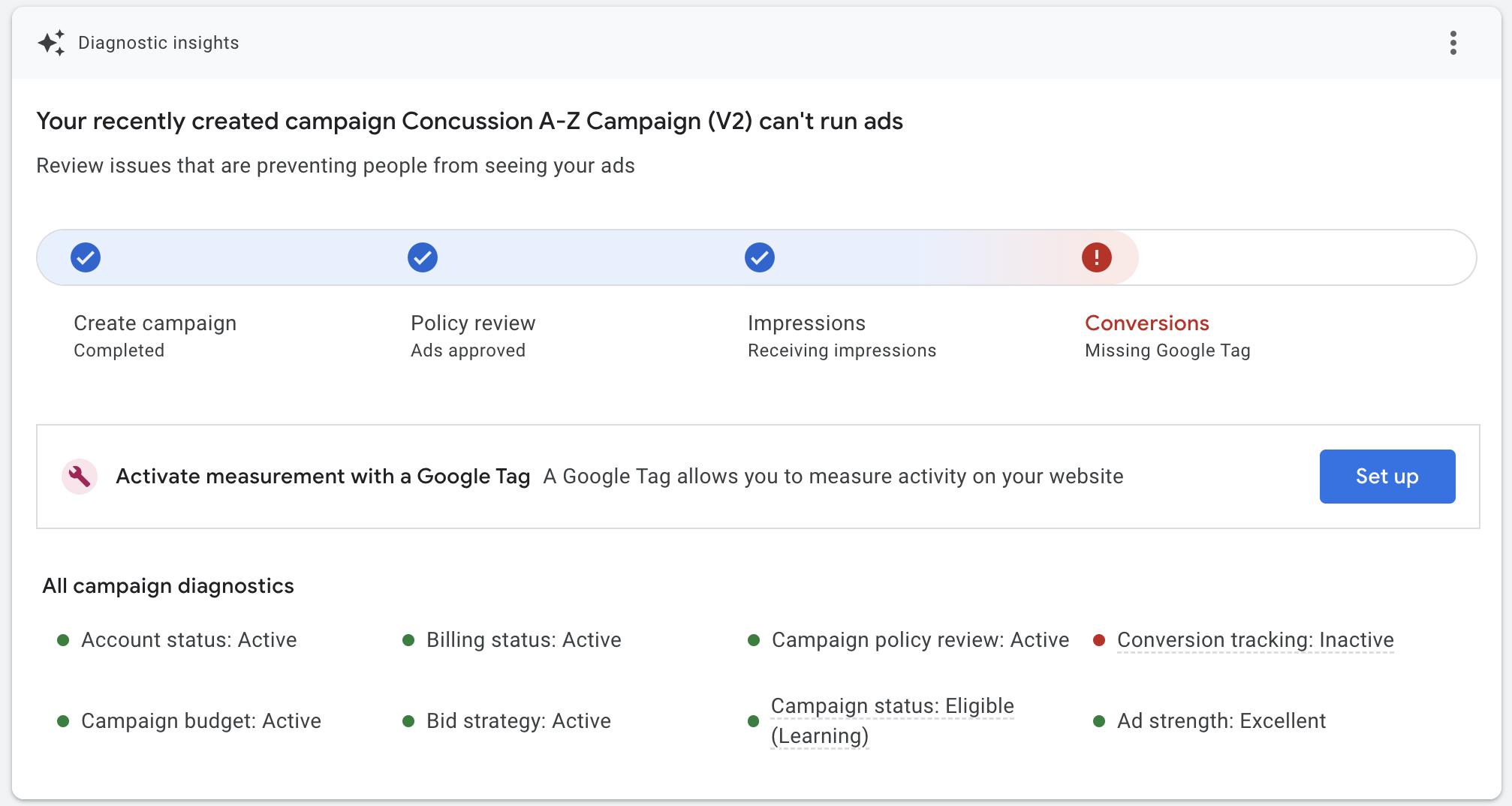
The first step when Google Ads conversions are not tracking is to review the status of your conversion actions. Google Ads provides diagnostic information that can indicate whether a conversion action is active, needs attention, is misconfigured, or has not recorded recent conversions.
How to check conversion status
- Sign in to your Google Ads account.
- Open Goals → Conversions → Summary. The exact navigation may vary by account interface.
- Find the conversion action you want to investigate.
- Review its status and any available diagnostic messages.
- Open the details to see recommended troubleshooting steps.
- Confirm that the conversion action is configured for the correct website, event, or business outcome.
Pay attention to statuses such as “Inactive,” “Unverified,” “Needs attention,” or “Misconfigured.” Each can point to a different issue.
If a conversion action is new, has low traffic, or has not recently received a conversion, its status may not immediately indicate a broken setup. Check the diagnostics and test the conversion before making major changes.
For the official troubleshooting process, see Google Ads conversion tracking diagnostics.
2. Verify That Your Google Tag Is Installed Correctly
A missing, misplaced, or incorrectly configured Google tag is a common reason Google Ads conversions are not tracking. Your website needs the appropriate tag implementation to send measurement data when users complete the actions you want to track.
If you use Google Tag Manager (GTM), the relevant tags and triggers must also be configured correctly.
How to check your Google tag
- Open your website in a browser.
- Launch Google Tag Assistant.
- Connect to your website and start a debugging session.
- Visit the relevant landing page and complete the conversion action, such as submitting a test form.
- Check whether the expected Google tag and conversion event fire.
- Review any errors, missing tags, or configuration warnings.
- If you use GTM, open Preview mode and confirm that the correct tag fires on the intended event.
Check that the conversion ID and conversion label match the values configured in Google Ads when using direct Google Ads conversion tracking.
Also verify that your Google tag is installed across the relevant pages and that the implementation works on mobile devices and any separate conversion domains.
Important: Seeing a Google tag on the page does not prove that conversion tracking is working. You must verify that the correct conversion event fires when the intended action takes place.
3. Fix Incorrect Conversion Events and Triggers
Sometimes Google Ads conversions are not tracking because the event is configured incorrectly. Your tag might fire on the wrong page, fail to trigger after a successful form submission, or record a page view instead of a completed conversion.
For example, if your goal is to track completed lead forms, firing the conversion event when someone merely opens the form could inflate your reported conversions. Conversely, if the event only triggers on a thank-you page that users never reach, valid leads may go unrecorded.
How to fix incorrect event tracking
- Identify the exact action that should count as a conversion.
- Confirm whether it is a purchase, completed form, phone call, booking, or another meaningful action.
- Check the event or trigger configured in Google Ads, GA4, or GTM.
- Ensure the event fires only after the intended action succeeds.
- Test the complete user journey, including any redirects or confirmation pages.
- Confirm that the event sends the correct parameters and values where applicable.
- Repeat the test on mobile and desktop if both are important to your business.
For form tracking, use a successful submission event rather than a generic button click whenever possible. A click alone does not guarantee that the form was submitted successfully.
For ecommerce, check that the purchase event fires after a successful transaction and sends the correct transaction ID and value.
4. Identify and Remove Duplicate Conversion Tracking
Duplicate tracking occurs when the same business action is recorded more than once. It can happen when a conversion event is implemented both directly on the website and through GTM, or when multiple tags fire for the same purchase or form submission.
If Google Ads conversions are not tracking accurately—or your reports show more conversions than expected—duplicate events should be investigated.
How to troubleshoot duplicate conversions
- Open Google Tag Assistant and test a conversion.
- Check whether multiple conversion tags fire for the same action.
- Review both your website code and GTM container.
- Check whether an old tag remains after a tracking implementation was updated.
- Confirm that the same event is not being sent through multiple overlapping implementations.
- For purchases, use a unique transaction ID where supported to help identify duplicate transactions.
- Retest the complete conversion journey after removing redundant tracking.
Do not remove every tag simply because you see multiple Google-related tags. Google Ads, GA4, and other measurement products may legitimately use different tags or events. The objective is to prevent the same conversion from being counted more than intended.
Also review the conversion action’s counting setting. For example, counting every conversion can be appropriate for purchases, while counting one conversion per ad interaction may be more suitable for many lead-generation goals.
5. Check Consent Mode and Cookie Consent Settings
Consent configuration can affect how Google tags collect and use measurement data. If your consent banner or Consent Mode implementation is incorrectly configured, Google Ads conversions may be underreported or missing.
For example, a consent management platform might prevent tags from firing until consent is granted. That can be appropriate for a basic consent implementation, but a configuration error could also prevent consent signals from being updated correctly after a user makes a choice.
How to troubleshoot consent-related tracking
- Review your website’s cookie consent banner and consent management platform.
- Confirm that Google tags respond correctly to the user’s consent choices.
- If you use Google Consent Mode, verify that consent defaults and updates are configured correctly.
- Use Tag Assistant to inspect the consent state during testing.
- Check for tags firing before the appropriate consent signals are applied or failing to update after a user’s choice.
- Review Google Ads tag diagnostics for consent-related warnings.
- Test the implementation for the relevant regions and consent requirements.
Consent settings must accurately reflect the user’s choices and applicable legal requirements. Do not bypass consent controls simply to increase conversion counts.
Depending on the implementation, consent restrictions may reduce observable conversions. Consent Mode can support measurement and modeling in eligible situations, but it does not guarantee that every conversion will be recorded.
For technical guidance, see Google’s Consent Mode overview.
6. Fix Google Analytics 4 (GA4) Conversion Import Issues
If you import conversions from GA4 into Google Ads, the event may be recorded in Analytics but missing from your advertising reports. This can happen because the accounts are not linked correctly, the wrong event is selected, or the imported conversion action is not configured as intended.
Google Ads and GA4 can also report different numbers because they use different attribution, reporting, and processing methods.
How to troubleshoot GA4 imports
- Open GA4 and navigate to Reports → Engagement → Events, or use the relevant Events section in your current interface.
- Confirm that the intended event is being recorded.
- Verify that the event represents a completed conversion rather than an intermediate action.
- If needed, mark the appropriate event as a key event in GA4.
- Confirm that the correct GA4 property is linked to the correct Google Ads account.
- In Google Ads, review the conversion goals and imported conversion actions.
- Confirm that the intended conversion action is available and configured for your campaign goals.
- Test the event again and allow time for reporting to update.
For example, if generate_lead is the event you want to measure, verify that it fires when a user successfully submits a lead form. Then check that the correct event or key event is being imported into Google Ads.
If your Google Ads account uses a manager account or cross-account conversion tracking, verify that the Analytics property is linked to the appropriate account.
Important: An event appearing in GA4 does not automatically mean it will appear as a Google Ads conversion. Check the import configuration and reporting status before changing your website’s tracking code.
7. Allow for Reporting Delays and Check Attribution
Sometimes Google Ads conversions are not tracking in real time even though the tags are working correctly. Conversion processing and reporting can take time, and Google Ads may attribute conversions to the date of the original ad interaction rather than the date when the conversion occurred.
For example, a customer may click an ad on Monday and complete a purchase on Tuesday. Depending on the report, that conversion may be associated with Monday’s ad interaction.
How to check for reporting delays
- Confirm that the conversion tag or event fires successfully.
- Check the conversion action’s status and diagnostics.
- Allow time for processing before concluding that tracking is broken.
- Compare consistent date ranges in Google Ads and GA4.
- Check the attribution model, conversion window, and reporting settings.
- Review whether the conversion is attributed to a different date than expected.
- Avoid repeatedly reinstalling tags when the underlying implementation is working.
Google notes that reporting may take several hours to update, and tag diagnostics can take longer to reflect recent fixes. The exact timing varies by issue and conversion type.
If a tag has just been corrected, retest it and monitor its status rather than assuming the absence of an immediate report means the fix failed.
Quick Checklist: Google Ads Conversions Not Tracking
Use this checklist to identify the issue before making further changes.
| Possible problem | What to check | Recommended fix |
| Missing Google tag | Tag Assistant and tag diagnostics | Install or repair the relevant tag |
| Incorrect conversion event | Event name and trigger conditions | Track the intended completed action |
| Wrong conversion ID or label | Google Ads action versus implemented tag | Correct the mismatched configuration |
| Duplicate conversions | Multiple tags or overlapping triggers | Remove redundant implementations |
| Consent configuration error | Consent signals and tag behavior | Correct the consent setup |
| GA4 import issue | Property linking and imported event | Repair the link or import configuration |
| Reporting delay | Recent test events and date range | Allow processing time and compare consistent periods |
| Conversion not used for bidding | Primary/secondary configuration and campaign goals | Align the conversion action with the campaign objective |
Final Thoughts
If Google Ads conversions are not tracking, start by checking the conversion action status and testing the complete user journey with Google Tag Assistant. Then investigate missing tags, incorrect event triggers, duplicate implementations, consent settings, and GA4 imports.
Once tracking works, verify that conversions represent genuine business outcomes and that your primary conversion actions match your campaign objectives. Accurate conversion data helps you evaluate performance, make better budget decisions, and optimize campaigns toward meaningful results.
Frequently Asked Questions
1. Why are my Google Ads conversions not tracking?
Common causes include a missing Google tag, incorrect conversion events, mismatched conversion IDs or labels, duplicate tags, consent configuration problems, and GA4 import errors. Start with conversion diagnostics and test the event using Google Tag Assistant.
2. How do I check whether Google Ads conversion tracking is working?
Open Google Ads conversion diagnostics and use Google Tag Assistant to test a real conversion journey. Confirm that the relevant tag fires at the correct time and that the conversion action is configured correctly in your account.
3. Why are my conversions showing in GA4 but not Google Ads?
The GA4 property may not be linked to the correct Google Ads account, the event may not be imported properly, or reporting and attribution differences may explain the discrepancy. Check the property link, event configuration, imported conversion action, and reporting date range.
4. Can duplicate tags cause incorrect Google Ads conversion data?
Yes. If multiple implementations record the same action, conversions can be counted more than intended. Use Tag Assistant and GTM Preview to identify overlapping tags or triggers, and review conversion counting settings.
5. Does Consent Mode affect Google Ads conversion tracking?
Yes. Consent settings influence how Google tags collect and use measurement data. Incorrect consent defaults or updates can reduce measurement accuracy. Verify that consent signals reflect user choices and that your implementation follows applicable requirements.
6. How long does Google Ads conversion tracking take to update?
Reporting timing varies by conversion type and implementation. Google Ads reporting can take several hours to update, and tag diagnostics may take longer to reflect fixes. Verify the tag first, then allow time for processing.
7. Why are my Google Ads conversions lower than my GA4 conversions?
Google Ads and GA4 can use different attribution methods, conversion definitions, reporting timeframes, and processing rules. Compare the same date range, event definitions, attribution settings, and traffic sources before concluding that tracking is broken.