To fix disapproved Google Ads, open your Google Ads account, identify the exact policy violation, correct the ad or landing page, and submit it for review. Common reasons for disapproval include prohibited content, misleading claims, editorial errors, broken landing pages, destination mismatches, and restricted products or services. If your ad follows Google’s policies but was incorrectly disapproved, you can appeal the decision through Google Ads. Identifying the specific issue before making changes is the fastest way to work toward getting your ads approved.
Why Are My Google Ads Disapproved?
Google disapproves ads that do not comply with its advertising policies or destination requirements. A disapproval can affect an ad, an asset, or the website visitors reach after clicking the ad.
For example, an ad may be rejected because it contains misleading claims, uses prohibited content, or directs visitors to a broken page. In other cases, the ad itself may be acceptable, but its landing page redirects to an unexpected domain or cannot be accessed by Google’s systems.
When you see disapproved Google Ads in your account, do not immediately create replacement ads. First, check the policy details to understand what caused the rejection and whether the issue affects the ad copy, its assets, the destination, or your account.
1. Check the Exact Google Ads Disapproval Reason
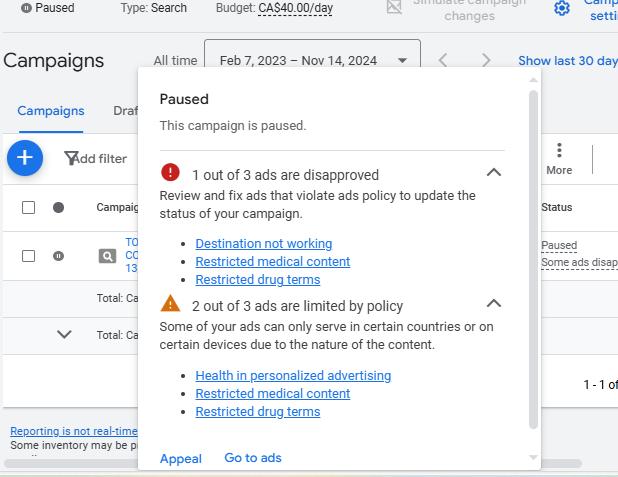
The first step to fixing disapproved Google Ads is to identify the policy reason displayed in your account. Google provides policy information to help advertisers understand why an ad cannot run and what needs to be corrected.
How to check your ad disapproval status
- Sign in to your Google Ads account.
- Open Campaigns and select Ads.
- Find the disapproved ad in the Status column.
- Hover over or open the disapproval status to view more information.
- Select the option to read the relevant policy.
- Review the policy details and identify the required correction.
You can also add the Policy details column to the Ads or Assets table to make policy information easier to review.
For multiple rejected ads, use Policy Manager to review policy issues and appeal history.
Important: Different disapproval reasons require different solutions. An editorial issue may need a small copy correction, while a destination error may require technical work on your website.
2. Fix Google Ads Policy Violations in Your Ad Copy
Ad copy violations are another common reason Google disapproves ads. Your headlines, descriptions, images, and other creative assets must comply with the policies that apply to your product, service, and target location.
Potential issues include misleading statements, prohibited content, unsupported claims, or editorial problems such as inappropriate punctuation.
How to fix ad copy violations
- Open the disapproved ad in Google Ads.
- Review the specific policy mentioned in the status details.
- Read the applicable policy requirements.
- Edit the headline, description, or affected asset.
- Remove or correct the content that violates the policy.
- Save the changes to initiate another review.
For example, avoid making absolute promises such as guaranteed results unless the claim is permitted and can be properly substantiated under applicable policies. Ensure that prices, discounts, benefits, and other promotional statements accurately represent the offer.
Do not simply replace restricted words with synonyms to bypass Google’s review. Correct the underlying policy issue and ensure the advertisement genuinely complies with the applicable rules.
3. Fix Landing Page and Destination Errors
Sometimes disapproved Google Ads are caused by the landing page rather than the advertisement. Google requires destinations to function properly, be accessible to users, and accurately represent where the ad sends visitors.
Common destination problems include broken URLs, server errors, unexpected redirects, destination mismatches, and pages that cannot be crawled by Google AdsBot.
How to fix landing page disapproval
- Open the final URL configured in your ad.
- Confirm that the page loads correctly on desktop and mobile.
- Check for broken links, HTTP errors, and redirect loops.
- Verify that the display URL and destination domain are consistent.
- Review tracking templates and redirects for unexpected domain changes.
- Confirm that the landing page is accessible in the targeted locations.
- Correct the issue and save the updated ad or destination.
For example, if an ad displays example.com but redirects visitors to an unrelated domain, Google may flag a destination mismatch. Use a stable, relevant destination that accurately reflects the advertised website.
If the page works in your browser but Google still reports a destination problem, investigate server responses, security restrictions, geographic access, and crawler accessibility.
4. Review Restricted Products and Services Policies
Certain products and services are prohibited or subject to additional advertising requirements. A business may need to meet specific eligibility, certification, licensing, or location-based conditions before it can advertise particular offerings.
The applicable requirements depend on the product or service, ad format, and target location.
How to resolve restricted-content disapproval
- Read the exact policy named in the disapproval notice.
- Determine whether the product or service is prohibited or restricted.
- Check whether the policy requires certification or an application.
- Verify whether your business and target locations are eligible.
- Make the necessary changes or complete the required approval process.
- Request a review after the issue has been resolved.
If a product or service is prohibited, changing the ad wording will not make it eligible. If advertising is permitted only under certain conditions, satisfy those requirements before submitting the ad again.
Check Google’s official Advertising Policies for the rules that apply to your business.
5. Check Your Website for Trust and Compliance Issues
Your website can contribute to Google Ads disapproval if its content, functionality, or business practices violate applicable policies. This is especially important when the ad promotes a service that requires clear business information or specific disclosures.
Website checks to perform
- Ensure that the landing page accurately describes the advertised product or service.
- Remove misleading statements and unsupported claims.
- Verify that prices, offers, and promotional terms are accurate.
- Check that relevant contact and business information is accessible where appropriate.
- Fix broken links, error pages, and unexpected redirects.
- Review privacy disclosures and consent mechanisms where applicable.
- Ensure that the page provides a safe and functional user experience.
A website does not need to use a single universal layout to qualify for advertising. The important point is that it complies with the applicable policies and provides the destination experience required by Google.
If Google identifies a specific website issue, correct that issue rather than redesigning unrelated pages without evidence that they are contributing to the disapproval.
6. Resubmit Your Ad for Review
After correcting a policy violation, your disapproved Google Ads may need another review before they can run. For ordinary ad-level violations, editing the affected ad and saving it generally triggers a new review.
How to resubmit a disapproved ad
- Open the Ads section in Google Ads.
- Find the rejected ad.
- Edit the affected content or destination.
- Save the corrected ad.
- Review its status to confirm that it is being processed.
- Check again after the review has had time to complete.
Many ads are reviewed within one working day, although some reviews take longer. Avoid making unnecessary changes while a review is in progress because additional edits can trigger further reviews.
If the issue affects a campaign-level or account-level tracking template, the required process may differ. Follow the instructions provided in the relevant policy details.
An ad is not guaranteed to be approved simply because it has been resubmitted. Google must determine that it complies with the applicable requirements.
7. Appeal a Google Ads Disapproval if You Believe It Is Incorrect
If your ad complies with the relevant policies and you believe Google made an incorrect decision, you can appeal the disapproval. You can also appeal after making changes to bring the ad into compliance.
How to appeal a disapproved Google Ad
- Open Google Ads and navigate to Policy Manager, usually under Tools and Troubleshooting.
- Locate the affected policy issue.
- Select Appeal.
- Choose the appropriate reason, such as disputing the decision or confirming that changes were made to comply with the policy.
- Submit the appeal.
- Monitor the result in Policy Manager.
You can also appeal eligible policy decisions from the Ads page by selecting the affected ads and choosing the policy appeal option.
Before appealing, ensure that you understand the policy and have corrected any genuine violations. If the appeal fails, review the result and resolve any remaining issues before trying again.
Google limits appeals in certain circumstances, including a limit of three appeals per ad before contacting support is required after three unsuccessful appeals. Wait at least 24 hours before submitting another appeal for the same ads or campaigns to reduce the risk of duplicate appeals.
For current procedures, consult Google’s official guide: Fix a disapproved ad or appeal a policy decision.
How Long Does It Take to Get a Disapproved Google Ad Approved?
The time required to resolve disapproved Google Ads depends on the type of violation, the changes required, and the review process. Many ad reviews finish within one working day, but complex policy issues, account restrictions, and appeals can take longer.
You should distinguish between correcting an issue and receiving approval. Saving an edited ad may trigger another review, but the ad cannot serve until the relevant restrictions have been cleared.
Check the ad’s status and Policy Manager for updates. Avoid repeatedly submitting appeals or making unnecessary edits while a review is underway.
What Is the Difference Between Disapproved and Eligible (Limited)?
A disapproved Google Ad cannot run while the disapproval remains in effect. An ad marked Eligible (limited), however, may still serve but under restrictions related to the applicable policy.
For example, certain permitted products or services may be subject to geographic, audience, certification, or other eligibility restrictions.
If your ad is marked Eligible (limited), review its policy details to understand where and under what conditions it can serve. If you believe the restriction is incorrect, follow the applicable appeal process.
Do not assume that every policy label means the ad is completely blocked. The precise status determines the next step.
Common Mistakes to Avoid When Fixing Disapproved Google Ads
Avoid these mistakes when troubleshooting a rejected ad:
- Repeatedly resubmitting the same ad without correcting the violation.
- Creating duplicate ads to bypass a policy restriction.
- Changing words without addressing the underlying policy issue.
- Ignoring landing-page errors or unexpected redirects.
- Appealing without reviewing the stated policy.
- Making unrelated website changes instead of fixing the identified issue.
- Submitting repeated appeals while an earlier appeal is still being processed.
- Assuming that every disapproval is caused by the ad copy alone.
A structured approach saves time and helps prevent recurring policy issues. Identify the reason, correct the actual problem, and use the appropriate review or appeal process.
Quick Checklist to Fix Disapproved Google Ads
Use this checklist before resubmitting your ad:
- Identify the exact policy violation.
- Review the relevant Google Ads policy.
- Correct the headline, description, or affected asset if necessary.
- Check the final URL and landing-page functionality.
- Resolve restricted-content or eligibility requirements.
- Save the corrected ad or destination.
- Appeal if the decision is incorrect or the appropriate policy process requires it.
- Monitor the review status in Google Ads or Policy Manager.
Conclusion
To fix disapproved Google Ads, start by identifying the exact reason for rejection. Correct the ad copy, destination, website, or eligibility issue according to the relevant Google Ads policy. Then save the changes and allow the ad to be reviewed again.
If you believe the decision is incorrect, submit an appeal through the appropriate process and monitor its status. Avoid repeated appeals or attempts to bypass restrictions. Addressing the actual problem is the most reliable way to work toward restoring ad eligibility and preventing similar disapprovals in the future.
Frequently Asked Questions
1. How do I fix a disapproved Google Ad?
Open Google Ads, find the disapproved ad, and review the policy details. Correct the specific issue in the ad, its assets, or the landing page, then save the changes for review. If the ad complies with the policy and was incorrectly rejected, appeal the decision.
2. Why are my Google Ads disapproved?
Google Ads may be disapproved because of policy violations, misleading claims, editorial errors, restricted products or services, broken landing pages, destination mismatches, or other eligibility issues. Check the specific disapproval reason in your account to identify the correct solution.
3. How long does Google Ads approval take after fixing a disapproval?
Many ads are reviewed within one working day, but some reviews take longer. The time depends on the policy issue and the review process. Monitor the ad status and Policy Manager for updates.
4. Can I appeal a disapproved Google Ad?
Yes. If you believe the decision is incorrect or have corrected the policy violation, you can appeal eligible decisions through Google Ads. Choose the appropriate appeal reason and monitor the result in Policy Manager.
5. Why are my Google Ads disapproved because of my landing page?
Your landing page may be broken, inaccessible, inconsistent with the displayed destination, or noncompliant with Google’s destination requirements. Check the final URL, redirects, server responses, and page content, then correct the identified problem.
6. Can I create a new ad to avoid a Google Ads disapproval?
Creating duplicate ads to bypass a policy restriction is not a reliable solution. Resolve the underlying issue and use the normal review or appeal process. Repeated attempts to circumvent policy enforcement can create additional account risks.
7. What does Eligible (limited) mean in Google Ads?
Eligible (limited) means that an ad may run but is restricted under one or more applicable policies. Review the policy details to understand the limitations and determine whether additional eligibility steps or an appeal are appropriate.
8. Will editing a disapproved Google Ad automatically trigger another review?
For ordinary ad-level policy violations, editing the affected ad and saving it generally triggers another review. Some account-level or tracking-template issues may require a separate appeal or review request. Follow the instructions shown in the relevant policy details.
9. How many times can I appeal a disapproved Google Ad?
Google’s current guidance limits each ad to three appeals in the applicable process. If all three appeals are unsuccessful, contact Google Ads support before attempting another appeal. Avoid repeated submissions while a previous appeal is being processed.
10. Where can I check Google Ads policy violations?
You can review disapproval details in the Ads or Assets section of your Google Ads account. Policy Manager, available under Tools and Troubleshooting, provides information about policy issues and appeal history. Google’s official Advertising Policies Help Center provides the applicable requirements.