
To improve Google Page Experience, make your website fast, responsive, secure, mobile-friendly, and easy to navigate. Start by optimizing Core Web Vitals: aim for a Largest Contentful Paint (LCP) of 2.5 seconds or less, an Interaction to Next Paint (INP) below 200 milliseconds, and a Cumulative Layout Shift (CLS) score of 0.1 or less. Compress images, reduce unnecessary JavaScript, prevent unexpected layout shifts, and avoid intrusive pop-ups. These improvements can create a better user experience and support SEO, but they do not guarantee higher Google rankings.
To improve Google Page Experience, optimize Core Web Vitals, improve mobile usability, secure your website with HTTPS, remove intrusive pop-ups, and optimize website speed. Use Google Search Console and PageSpeed Insights to identify issues and monitor performance.
A better page experience helps visitors navigate your website, access content, and complete tasks with less frustration. This guide covers six practical tips to improve website performance and usability.
Table of Contents
- What Is Google Page Experience, and Why Does It Matter?
- What Are Core Web Vitals?
- How Do Core Web Vitals Affect Website Performance?
- 6 Tips to Improve Google Page Experience
- Use Responsive Web Design
- Improve Website Security With HTTPS
- Remove Intrusive Pop-Ups
- Optimize Website Code and Loading Speed
- Use Caching and Image Optimization
- Monitor Core Web Vitals and Fix Problems
- How to Measure Google Page Experience
- Frequently Asked Questions
- Conclusion
What Is Google Page Experience, and Why Does It Matter?
Google Page Experience refers to the overall experience people have when they visit and use a webpage. It includes loading performance, responsiveness, visual stability, mobile usability, secure browsing, and the way the main content appears.
Google does not use a single Page Experience score to decide where every webpage ranks. Instead, its core ranking systems consider several signals related to the quality of the experience. Helpful, relevant content remains essential.
Therefore, improving Google Page Experience means more than making a page load quickly. Your website should also be easy to read, simple to navigate, and reliable on mobile devices.
For example, imagine a visitor opens a service page on a smartphone. The page takes several seconds to load, and a pop-up covers the contact button. The visitor may leave without learning about the service.
Now imagine the same page loads quickly, displays its content clearly, and provides an easy way to get in touch. The visitor can complete the task with less effort.
This is the purpose of page experience optimisation. It removes barriers between visitors and the information they need.
A good page experience can help your website in several ways:
- Better usability: Visitors can find important information more easily.
- Improved mobile experience: Content and interactive elements work well on smaller screens.
- Fewer interruptions: Clear layouts and fewer intrusive pop-ups help people focus.
- Better conversion opportunities: Working forms and visible calls to action make it easier to contact your business.
- Stronger technical SEO: Good performance helps search engines, and visitors access your content more reliably.
However, these benefits do not mean that every page with good performance will rank above its competitors. Google considers relevance, content quality, and many other factors when displaying search results.
What Are Core Web Vitals?
Core Web Vitals are three metrics that measure important parts of the user experience: loading speed, responsiveness, and visual stability. Google recommends meeting their good-performance thresholds to support a better experience for visitors.
The three metrics are Largest Contentful Paint (LCP), Interaction to Next Paint (INP), and Cumulative Layout Shift (CLS).
| Core Web Vital | What it measures | Good target |
| Largest Contentful Paint (LCP) | How quickly the main visible content loads | 2.5 seconds or less |
| Interaction to Next Paint (INP) | How quickly the page responds to user interactions | 200 milliseconds or less |
| Cumulative Layout Shift (CLS) | How stable the page layout remains | 0.1 or less |
These targets are measured at the 75th percentile of real-user visits. This means the goal is for at least 75% of visits to meet the good threshold for each metric.
1. Largest Contentful Paint (LCP)
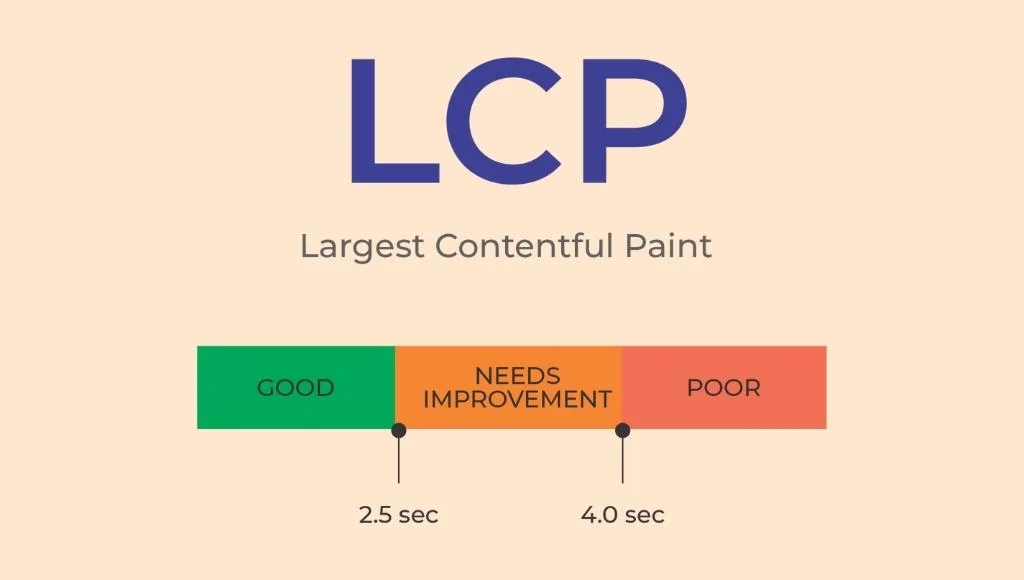
LCP measures how quickly the largest visible content element appears. This element might be a banner image, a featured image, or a large block of text.
A good LCP result is 2.5 seconds or less.
For example, a visitor opens a blog post, but its main image takes four seconds to appear. The page may feel slow, even if a small amount of text loads earlier.
To improve LCP, compress large images, reduce server response delays, and avoid resources that block the page from rendering. Also, make sure the main image is not unnecessarily delayed by lazy loading.
2. Interaction to Next Paint (INP)
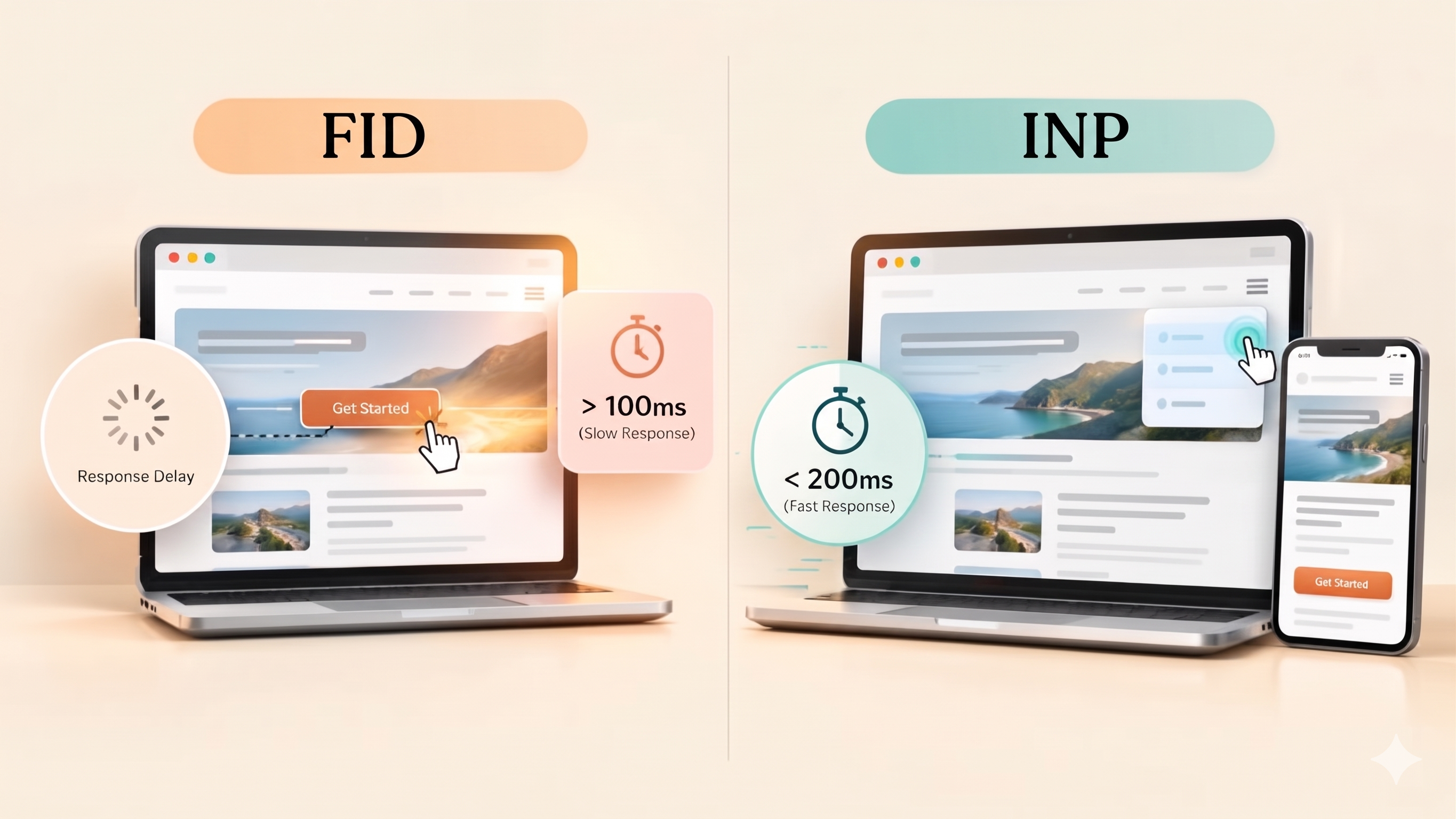
INP measures how quickly a page responds to user interactions, such as clicks, taps, and keyboard input. It considers interactions throughout the visit rather than measuring only the first one.
A good INP result is 200 milliseconds or less.
For example, a visitor clicks a menu button, but the menu takes too long to respond. Heavy JavaScript or other main-thread work may be causing the delay.
To improve INP, reduce unnecessary JavaScript, break up long tasks, and review third-party scripts that may slow down the browser.
3. Cumulative Layout Shift (CLS)
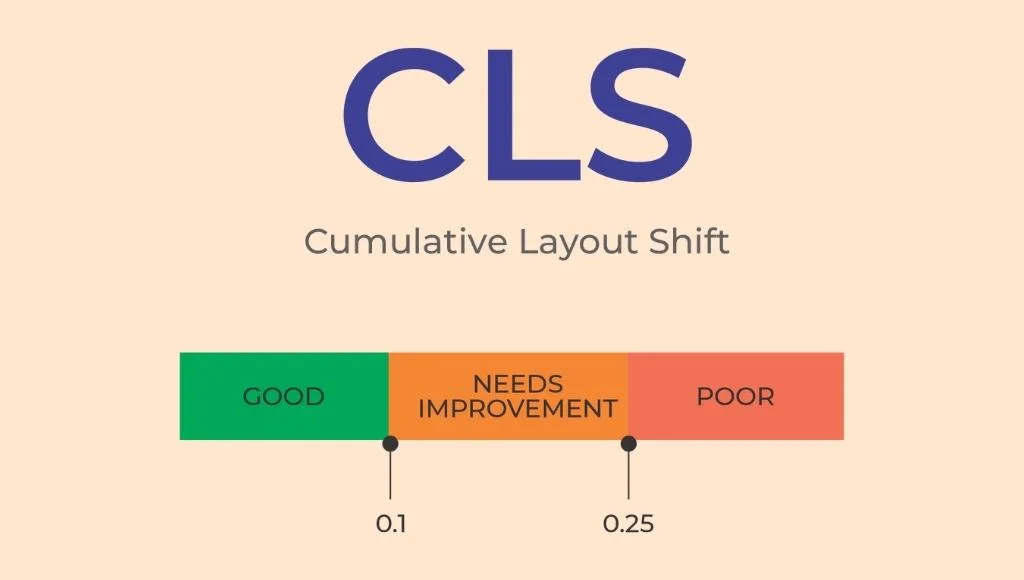
CLS measures unexpected movement in visible page content. These shifts can make a page difficult to read or cause visitors to click the wrong button.
A good CLS result is 0.1 or less.
For example, a visitor begins reading an article. An advertisement then loads above the text and pushes the content down the screen. The visitor must find their place again.
To prevent this problem, specify image dimensions, reserve space for advertisements and embedded content, and avoid inserting new content above existing content without warning.
Together, these three metrics help you identify important performance issues. However, they are only one part of the overall page experience.
How Do Core Web Vitals Affect Website Performance?
Poor Core Web Vitals can make your website frustrating to use. Slow loading, delayed interactions, and unstable layouts can prevent visitors from reaching the content or actions they need.
The table below explains common problems, their possible causes, and the steps you can take to fix them.
| Problem | Possible cause | What to do |
| Slow page loading | Large images, slow server response, or render-blocking resources | Optimize images, improve caching, and reduce blocking resources. |
| Delayed button response | Heavy JavaScript or long-running browser tasks | Reduce script work and improve interaction handling. |
| Unexpected content movement | Images without dimensions or late-loading advertisements | Reserve space for images, ads, and embedded content |
| Difficult mobile navigation | Small buttons, crowded menus, or fixed-width layouts | Use responsive design and improve touch controls. |
| Broken links or buttons | Incorrect URLs, deleted pages, or faulty scripts | Repair links and test important interactions. |
| Intrusive pop-ups | Overlays that block the main content | Remove unnecessary overlays or make them less disruptive. |
These problems may also affect business outcomes. For instance, a slow contact page can make it harder for potential customers to submit a form. Likewise, a confusing navigation menu can prevent visitors from reaching a product or service page.
Still, avoid assuming that every poor conversion rate is caused by page experience. Traffic quality, pricing, content relevance, and the offer itself can also influence results.
Therefore, use performance data to find the problem before making changes. This approach helps you focus on the fixes that matter most.
6 Tips to Improve Google Page Experience
The following six tips cover the main improvements you can make to deliver a faster, clearer, and more reliable website experience. Start with the issues that affect important pages or prevent visitors from completing key tasks.
1. Use Responsive Web Design
Responsive web design allows your website to adjust to different screen sizes. Visitors should be able to use the same essential features on mobile phones, tablets, and desktop computers.
A website that looks good on a large monitor may still be difficult to use on a phone. Text can become too small, buttons may be hard to tap, and images may extend beyond the screen.
To improve mobile usability:
- Use flexible layouts that adjust to the available screen width.
- Choose readable font sizes and comfortable line spacing.
- Make buttons and links easy to tap.
- Keep menus simple and easy to open.
- Prevent horizontal scrolling caused by oversized elements.
- Test forms, images, tables, and embedded content on mobile devices.
For example, a business website may display its contact form correctly on desktop but cut off the submit button on mobile. A responsive layout can correct the problem and make the form easier to complete.
Furthermore, check that mobile visitors can access important content without unnecessary barriers. Avoid hiding essential service details or contact information behind confusing menus.
You can also review your existing guide to optimizing a website for mobile search for related mobile SEO improvements.
Action step: How to check mobile usability: Open your most important pages on a smartphone and test the navigation, forms, buttons, images, and embedded content. Check for horizontal scrolling, clipped text, overlapping elements, and controls that are difficult to tap. Use browser developer tools to test different viewport widths and correct layout issues in the underlying CSS rather than hiding important content on smaller screens.
2. Improve Website Security With HTTPS
HTTPS helps protect the connection between a visitor’s browser and your website. It is important for user privacy and trust, especially when people submit forms or share personal information.
Websites that display security warnings may discourage visitors from continuing. Therefore, check that your website uses HTTPS correctly.
Follow these steps:
- Install and configure a valid TLS certificate.
- Redirect HTTP pages to their HTTPS versions where appropriate.
- Update internal links to use HTTPS.
- Fix mixed-content warnings caused by resources loaded over HTTP.
- Check that canonical URLs and XML sitemaps use the correct HTTPS URLs.
For example, a contact form may load over HTTPS while an image or script still loads over HTTP. This mixed content can create security warnings or prevent certain resources from working correctly.
Fixing these issues helps create a more reliable browsing experience.
However, HTTPS alone will not make a website rank highly. It is one part of a broader approach to website security, usability, and technical SEO.
Action step: Open important pages in your browser and check for security warnings. Then review your redirects, certificates, and mixed-content issues.
3. Remove Intrusive Pop-Ups
Pop-ups can help visitors subscribe to a newsletter, request a consultation, or access an offer. However, they become a problem when they block the main content or make the page difficult to use.
Google recommends avoiding intrusive interstitials that interfere with access to content. This is especially important on mobile devices, where screen space is limited.
To improve Google Page Experience, review every pop-up, banner, and overlay on your website.
- Remove pop-ups that do not provide clear value.
- Avoid displaying large overlays as soon as a visitor opens a page.
- Make the close button easy to find and use.
- Ensure that consent notices are clear and usable.
- Keep important content visible whenever possible.
- Check how overlays behave on small screens.
For example, imagine a visitor opens a blog post from Google. A full-screen subscription form appears before the visitor can read the article. This interrupts the task and may encourage the visitor to leave.
A smaller, less disruptive prompt can present the same offer without blocking the content.
At the same time, not every pop-up is harmful. Cookie consent notices and other legally required disclosures may be necessary. The goal is to provide them in a way that follows applicable requirements and avoids unnecessary disruption.
Action step: Review your website on mobile and desktop. Remove or redesign overlays that block the content visitors came to see.
4. Optimize Website Code and Loading Speed
Unnecessary code can slow down your website and delay important content. JavaScript, CSS, large libraries, and third-party scripts may all contribute to performance problems.
Website speed optimization should focus on removing unnecessary work and delivering important content sooner.
Here are practical ways to improve performance:
Remove unused JavaScript and CSS. Audit your scripts and stylesheets. Remove code that is no longer needed, and avoid loading features on pages that do not use them.
Minify files where appropriate. Minification removes unnecessary characters from code files. This can reduce file size without changing how the code works.
Reduce render-blocking resources. Review CSS and JavaScript that delay the initial display of the page. Load non-critical resources later when appropriate.
Improve server response time. Check your hosting, database queries, and caching setup. Slow server responses can delay the delivery of page content.
Review third-party scripts. Analytics tools, chat widgets, advertising scripts, and embedded services can add extra work. Keep only those that provide value.
For example, an older website may load several scripts for features that are no longer used. Removing those scripts can reduce unnecessary downloads and browser processing.
However, do not remove code blindly. Test important functions after each change to ensure that navigation, forms, tracking, and other features still work.
Action step: Run an important page through PageSpeed Insights. Review the diagnostics, identify the biggest sources of delay, and fix the main issue before making smaller changes.
For more guidance, see this technical SEO strategy guide.
5. Use Caching and Image Optimization
Images often account for a large share of a webpage’s downloaded data. Caching can also help reduce repeated downloads for returning visitors.
Together, image optimization and suitable caching can improve website performance and support a better page experience.
Start with these changes:
Compress images. Reduce image file sizes while preserving acceptable visual quality. Use WebP or AVIF where suitable.
Choose the correct dimensions. Avoid loading a huge image when a smaller version will fit the display area.
Use responsive images. Provide suitable image sizes for different screens so mobile visitors do not need to download unnecessarily large files.
Enable browser caching. Configure suitable cache headers so browsers can reuse static files when appropriate.
Use page caching where suitable. For websites that generate pages dynamically, page caching can reduce repeated server work.
Consider a CDN. A content delivery network can serve static resources from locations closer to visitors and may reduce delivery delays.
Lazy-load below-the-fold images. Images that appear later on the page can often load as visitors scroll. However, avoid lazy-loading the main image that is needed for the initial view.
For example, an article with five large images may download every image immediately, even when most are far below the first screen. Lazy-loading the lower images can reduce initial downloads, while compressing the main image can help it appear sooner.
A caching plugin may simplify these tasks on some content management systems. Nevertheless, the right setup depends on your platform, hosting environment, and existing optimization tools.
Action step: Check the size and loading behavior of your main images. Then review browser caching, page caching, and CDN settings where appropriate.
6. Monitor Core Web Vitals and Fix Problems
Improving Google Page Experience is an ongoing task. A new plugin, design change, tracking script, or large image can introduce performance problems even after earlier fixes.
For that reason, measure your website regularly and prioritize issues based on their impact.
Use these tools:
- Google Search Console: Review the Core Web Vitals report to identify groups of pages with poor real-user performance.
- PageSpeed Insights: Review available field data and lab diagnostics for individual URLs.
- Chrome DevTools: Investigate network activity, JavaScript execution, rendering, and layout shifts.
- Lighthouse: Audit performance and other aspects of page quality in a controlled test environment.
These tools serve different purposes. Field data reflects real visits, while lab tests help reproduce and diagnose specific issues. When both are available, use them together.
A practical page experience diagnostic framework
Use this framework to identify the problem, choose a fix, and check whether the change works.
| What you notice | What to check | Recommended fix |
| Main content loads slowly | Image size, server response, render-blocking resources | Compress the main image and reduce loading delays |
| Buttons respond slowly | Long JavaScript tasks and third-party scripts | Reduce main-thread work and improve event handling |
| Content moves while loading | Image dimensions, advertisements, embedded content | Reserve space for elements before they load |
| Mobile pages are difficult to use | Menu behavior, button size, horizontal overflow | Improve responsive layouts and touch controls |
| Visitors struggle to find information | Headings, navigation, internal links | Simplify page structure and use descriptive links |
| Pop-ups block content | Overlay size, timing, mobile behavior | Remove unnecessary overlays or make them less disruptive |
Example: How to Prioritize Page Experience Fixes
Suppose a service page has three problems: its main image loads slowly, its contact button responds with a delay, and a newsletter overlay blocks the content on mobile.
Start by identifying each issue separately. Check the main image and server response to investigate LCP, inspect JavaScript and event handling to investigate INP, and test the overlay’s behavior on smaller screens. Fix the verified causes rather than applying every available optimization.
After making the changes, rerun the relevant tests and review real-user data when it becomes available. Record the results so you can compare the original performance with the updated page.
This approach helps you prioritize fixes based on evidence instead of assuming that one optimization will solve every page experience problem.
Action step: Begin with pages that matter most to your business, such as service pages, product pages, and high-traffic articles. Record the initial results, make targeted changes, and monitor real-user data over time.
How to Measure Google Page Experience
Measuring performance helps you understand whether your changes are working. However, one test or one score cannot describe every part of the experience.
Follow this process:
- Establish a baseline. Record your Core Web Vitals results for important pages.
- Identify the main problem. Determine whether the issue involves loading, responsiveness, visual stability, or usability.
- Choose a targeted fix. Address the cause rather than applying unrelated optimizations.
- Run another test. Use PageSpeed Insights and suitable browser tools to check the result.
- Review real-user data. Monitor Google Search Console as new field data becomes available.
- Check the full experience. Confirm that mobile navigation, forms, buttons, and content still work correctly.
For example, a page may receive a better laboratory score after image compression, but its real-user results may take time to reflect the change. Google Search Console’s field data is based on a rolling period, so it will not always update immediately after a fix.
Also, compare results under similar conditions when possible. Differences in devices, network speeds, and page content can affect test results.
Finally, do not focus on achieving a perfect score at the expense of useful features. Prioritize changes that improve the experience for real visitors.
Final Steps to Improve Google Page Experience
To improve Google Page Experience, focus on making your website fast, responsive, secure, and easy to use. Start with Core Web Vitals, then improve mobile usability, remove intrusive pop-ups, optimize code, and configure suitable caching.
Most importantly, measure the results instead of relying on assumptions. Use Google Search Console and PageSpeed Insights to identify problems, apply targeted fixes, and monitor performance over time.
A good page experience does not guarantee higher Google rankings. However, it helps remove barriers that prevent visitors from using your website effectively. Combined with relevant content and sound technical SEO, these improvements provide a stronger foundation for long-term search performance.
Need help improving your website’s performance? Explore our SEO services to learn how technical SEO and website optimization can support your search visibility.
Frequently Asked Questions
1. How can I improve Google Page Experience?
Improve Core Web Vitals, compress images, reduce unnecessary JavaScript, use responsive design, secure your website with HTTPS, and remove intrusive pop-ups. Also, improve navigation and monitor performance regularly.
2. Does Google Page Experience affect rankings?
Google’s core ranking systems consider signals related to page experience, including Core Web Vitals. However, there is no single Page Experience score that determines rankings. Helpful content, relevance, and other ranking factors also matter.
3. What are the three Core Web Vitals?
The three Core Web Vitals are Largest Contentful Paint (LCP), Interaction to Next Paint (INP), and Cumulative Layout Shift (CLS). They measure loading performance, responsiveness, and visual stability.
4. What is a good Core Web Vitals score?
The recommended good thresholds are LCP at 2.5 seconds or less, INP at 200 milliseconds or less, and CLS at 0.1 or less. These thresholds are assessed at the 75th percentile of real-user visits.
5. Which tools can help improve Google Page Experience?
Google Search Console, PageSpeed Insights, Chrome DevTools, and Lighthouse can help identify performance issues. Use real-user data alongside diagnostic tests to understand and fix problems.
6. How long does it take to improve Google Page Experience?
Simple changes, such as compressing images, may take little time. Larger improvements involving server performance or complex JavaScript can take longer. In addition, real-user performance reports may take time to reflect the results of your changes.
7. What is the difference between page experience and Core Web Vitals?
Page experience covers overall website usability, while Core Web Vitals measure loading performance, responsiveness, and visual stability.
8. Can improving Core Web Vitals guarantee better Google rankings?
No. Good Core Web Vitals can support a better user experience, but rankings also depend on content relevance, quality, and other factors.